The short version
Generate a QR code from your Amazon registry or wish list’s public share link and print it on invitations, enclosure cards, or signage. Amazon doesn’t generate one for you. Use a static code, set the list to public or shared visibility, and test on two phones before printing. Guests scan and land directly on the list.
- On the registry or wish list page, use Amazon’s Share button to copy the public share link. Don’t copy the browser bar URL, which often carries session details that break for guests.
- Paste the link into StackQR and download the code as SVG for print or PNG for screens.
- Open the share link in a logged-out browser to confirm it shows the public view, then scan the printed code on two phones.
That’s the working version. The rest of this article covers where the code should live, the privacy settings that silently break it, and the mistakes that only show up after printing.
There’s an awkward moment at every baby shower and wedding planning session: the point where you have to tell guests how to find your registry. “Search Amazon for my name” doesn’t really work, because Amazon’s search surfaces the wrong profile half the time. Copying and pasting the full URL into every text message is tedious, and the link itself is too long and ugly to drop onto a printed invitation without wrecking the layout.
The same problem hits wish lists. A classroom supply drive, a community donation list, a birthday list someone keeps for relatives: the list works fine, but the URL is a string of letters and slashes nobody can read aloud at a party or copy correctly from a flyer.
A QR code closes the gap for both. Guests point their phone camera at the invitation or the sign, and the list opens. No typing, no searching, no asking for the link a second time two weeks later. The tricky part is that a broken QR code creates more friction than a typed URL would have, so setup and testing carry the weight.
Registry or wish list, the mechanics are the same
A QR code does one simple job: it opens a web address when scanned. For an Amazon registry or wish list, that address points to the public page. The code itself doesn’t store gift information, track purchases, or change permissions. It only passes along the link. Whatever the list shows to someone with the link is what scanners see.
The reliability of the code depends entirely on the stability of the link you choose, and Amazon makes that easy to get wrong. The URL in your browser bar while you’re logged in and editing often includes session details that don’t work for guests. The official share link (from the Share or Send button on the page) is the one to encode. Paste it into a browser where you aren’t logged in and confirm it opens the public view before generating anything.
Stay away from URL shorteners or temporary preview links. A code printed on an invitation needs to work weeks or months later, and a shortener is a fragile dependency for something with a fixed print run.
Where the code lives
For registries, the code usually ends up in one of four places. The back or bottom corner of the printed invitation, where it sits without dominating the design. A small enclosure card alongside the main invitation, which gives the code its own space. Event signage near the gift table or entrance, for guests who didn’t bring an invitation. And thank-you cards after the event, which point anyone who couldn’t make it at the registry one more time.
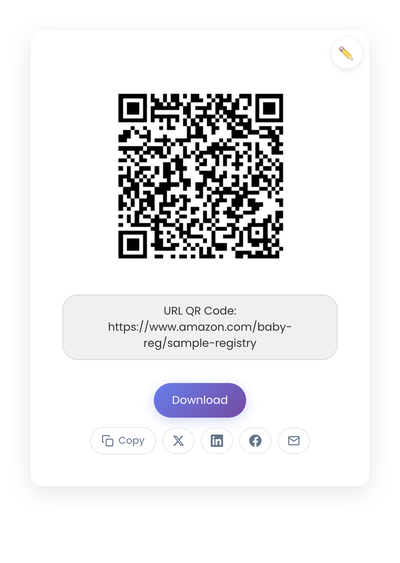
A static QR code holding the Amazon registry share URL directly in its pattern. The same code prints cleanly on invitations, enclosure cards, and gift-table signs.
Wish lists live in more workaday spots. A classroom door sign listing supply needs. A sign at the entrance of a community drive. A card by the register for customers who ask how to support a small business. The last slide of a talk, pointing at a list of recommended books or tools. In every placement the same rules apply: white space around the code, a simple background, and a short label like “Scan to view the registry” or “Supplies wish list.”
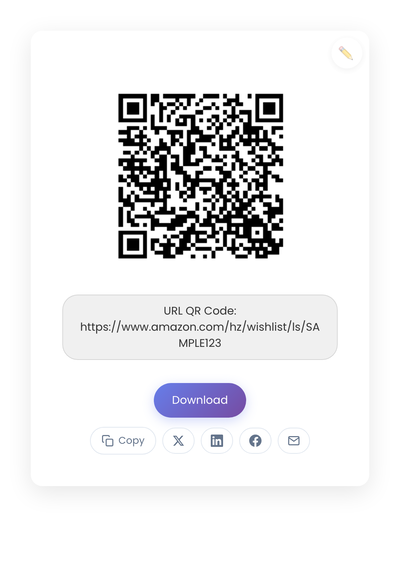
The wish list version of the same setup, generated from amazon.com/hz/wishlist/ls/SAMPLE123. One static code keeps working as items on the list come and go.
Why static is the right type here
Your registry or list URL stays the same through the whole event, even as items are added, purchased, and removed. A static code holds that link directly and works from every invitation, sign, and thank-you card without a third-party service in the middle. Dynamic codes add a vendor and a subscription that a wedding or a supply drive doesn’t justify. If the distinction is new, the static vs dynamic guide walks through it.
Settings to lock before printing
Amazon’s visibility controls are the silent killer of these codes. Set the registry or list to Public or Shared before invitations go out. If you tighten visibility later, the code still scans, but guests land on an error or an empty page.
Two smaller checks are worth the minute they take. A public registry usually hides your shipping address unless you’ve enabled it for gifting; confirm what Amazon actually shows guests matches what you’re comfortable with. And on wish lists, read your item notes as a stranger would. Sizes and quantities help; personal details don’t belong on a page you’re about to print a doorway to.
Testing before you print
The problems only show up after printing, so test first. Scan with your own phone, then a second phone, ideally covering both iOS and Android. Confirm the page opens without prompting for a login. Watch how fast it loads: guests scan and expect immediate feedback, and a redirect or sign-in screen means the sharing settings need another pass before anything goes to the printer.
What breaks these codes after printing
Linking to the wrong page is the most common failure. The logged-in account view blocks guests, and if you keep several wish lists, the URLs look similar enough to grab the wrong one. Rename your lists clearly and always test logged out.
Printing too small comes next. A tiny code looks neat on a card and scans poorly in low event lighting. Err slightly larger, and never place it over a busy background.
Using a screenshot of the code instead of the downloaded file costs scan reliability; screenshots compress the edges. Use the file the generator gave you.
And changing settings after printing (Public to Private, or deleting the list) breaks every code in circulation silently. The scan still works; the destination doesn’t. Lock the settings first.
When a QR code isn’t worth it
For one-on-one sharing through a text or a direct message, send the link itself. For a small group already on an email thread, same answer. The code earns its place when the audience is standing in front of paper: an invitation, a sign, a card. And not everyone scans confidently, so on printed pieces, pair the code with a short readable URL underneath for the few guests who prefer to type.
A registry or wish list QR code is a one-time setup. Lock the visibility settings, generate the code from the public share link, test it on two phones, and the same image handles invitations, signage, and thank-you cards for the whole event without a reprint.