Quick Answer
A QR code for an Amazon wish list encodes the list’s share URL into a scannable image. Print it on signs, cards, or flyers and anyone can scan to open the list instantly. The list URL stays the same as items come and go, so one static QR code keeps working.
Amazon wish lists are great gift shortcuts. A birthday, a baby shower, a classroom supply drive: someone keeps a list, everyone else shops from it. The problem is the URL. Amazon wish list links are long strings of letters and slashes that nobody can read aloud at a party or copy correctly from a flyer. A QR code closes that gap. The list lives at Amazon; the code points to it; anyone scanning lands on the right page in a few seconds.
How the code actually works
A QR code is a visual shortcut to a URL. Scan with a phone camera, and the URL opens. For an Amazon wish list, the URL points to your list at amazon.com. The code does nothing else. It doesn’t change permissions; it doesn’t process anything. Whatever your list shows to someone with the link is what scanners see.
That makes static the right type of QR code for this use case. Your list URL doesn’t change as you add or remove items, so a static code that holds the link directly will keep working indefinitely without a subscription or a redirect service. The longer comparison lives in our full breakdown of static vs dynamic QR codes.
Where this actually helps
The pattern shows up everywhere someone needs to share a wish list outside of a chat thread. Baby shower invitations and event programs print a QR code instead of a long URL. Classrooms post a sign on the door listing supply needs with the code on it. Community drives put the code on a sign at the entrance. Small businesses with equipment wish lists place a card by the register for customers who ask how to support them. A presenter wraps a session with a slide that includes a QR code to a related wish list of recommended books or tools.
In every case, the QR code is removing the typing step. The list itself was already accessible. The code just makes “go look at the list” a single scan instead of a long URL someone has to copy.
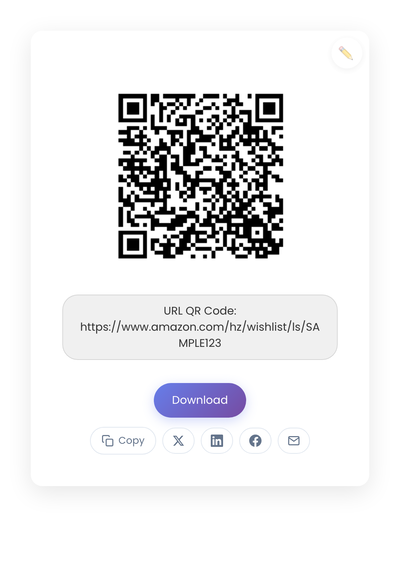
A static QR code generated from amazon.com/hz/wishlist/ls/SAMPLE123. The link is encoded directly in the code, so the wish list page is the only thing scanners interact with.
Preparing the list before printing the code
A few quick checks save reprints later. Set the list’s privacy to “Shared” or “Public” depending on how openly you want it accessible. Clean up out-of-stock items and add helpful notes where context matters (sizes, quantities, why the item is needed). Use Amazon’s built-in Share button to copy the cleaner share URL rather than copying the browser bar URL with its session and tracking parameters. Open the cleaned URL on a different device to confirm it loads as expected for someone who isn’t signed in to your account.
Generating the code
- Run your wish list URL through StackQR, download the code, and add it to the invitation or classroom sign.
- Download as PNG for screens or SVG for print.
- Scan the printed result on two or three phones before doing the full batch.
No account is needed, and the wish list URL stays on your device because the encoding happens in the browser.
Printing and placement
Where you place the QR code decides whether anyone scans. Codes near checkout counters, on bulletin boards, or next to sign-in sheets get most of the scans because that’s where people naturally pause. Codes mid-stride on a hallway poster get fewer.
Size matters too. For a printed sign, aim for at least 1.5 inches square. Use clean black on white. Busy backgrounds confuse phone cameras. A short label like “Scan to view wish list” or “Supplies wish list” right next to the code removes hesitation.
For digital placements like a slide at the end of a presentation, a PDF, an email signature, or a social post, the same principles apply. The code is a clear action that doesn’t depend on clickable text rendering correctly across email clients.
Privacy considerations
Sharing a wish list publicly involves real tradeoffs. The QR code makes access easier, which means whatever your list exposes is exposed more broadly. Worth reviewing before printing:
- Whether your shipping address is visible on the list
- Whether item notes contain personal details
- Whether the list should be time-limited rather than permanent
For business or group use, keep descriptions neutral and focused on the items themselves.
What trips up a wish list code
A few mistakes show up often. The most common is pointing the code at the wrong wish list. Amazon lets you keep many lists, and the URLs look similar enough that it’s easy to grab the wrong one. Rename your lists clearly so the URL is unambiguous.
Switching a list from Shared to Private after printing breaks scanners silently. The code still loads, but viewers see an error rather than the list. Confirm privacy settings before distributing.
Crowded signs with the code wedged between graphics make scans flaky. Give the code some white space. And test the printed result, not just the generated PNG. Lighting and surface texture affect scanning more than people expect.
When a QR code isn’t worth it
For one-on-one sharing through a direct message, a link is usually enough. No need for a code. For small groups already on an email thread, the link works without ceremony. QR codes help most when the audience is in front of a sign, not a screen.
A wish list QR code is a one-time setup. Generate it once from the public list URL, paste the image into your invitation file or print it on an enclosure card, and the list itself handles the rest.