A Google review QR code links directly to your Business Profile review form. Customers scan at the counter or on a receipt, and the review page opens instantly. Static QR codes work permanently and don’t depend on any subscription or redirect service.
Walk into almost any coffee shop, nail salon, barber, or independent retailer these days and you’ll see it: a small acrylic stand on the counter with a QR code and the words “Scan to leave a review.” Stickers on takeout bags. Receipts with a code printed at the bottom. It has become the default way small businesses try to turn happy customers into public reviews.
The idea works. Scanning is faster than searching Google Maps, finding the listing, scrolling to reviews, and signing in. The problem is that most of these codes are set up poorly. They link to the wrong page, or they rely on a free shortener that can expire, or they live in a spot where no customer ever looks.
Why Google reviews matter more than ever
Google reviews serve two audiences at once. They help future customers decide whether to trust you, and they help Google decide where to place you in local search results. Review volume, recency, and rating all influence local visibility.
A steady stream of honest reviews builds credibility before a customer ever visits, reinforces confidence for people already considering you, and keeps your business present in the local pack on search results. What matters isn’t perfection. A mix of opinions feels real and trustworthy. What matters is consistency and authenticity.
A QR code doesn’t create reviews on its own. It reduces the distance between a good experience and a review page, which is usually the entire reason satisfied customers don’t follow through.
What the code actually links to
A Google review QR code points to a specific URL: your Google Business Profile review form. The URL looks long and technical, but customers never see it. They see the review screen.
There are two common ways to get the link. The simpler path is your Google Business Profile dashboard, which has an “Ask for reviews” option that gives you a clean review URL. The other is constructing the link manually from your place ID, which is useful for multi-location setups but otherwise unnecessary.
The important detail: the QR code is just a container for the link. If the link breaks, the code breaks too. Shortened links in particular tend to fail over time, which is why the static-to-the-real-URL approach matters.
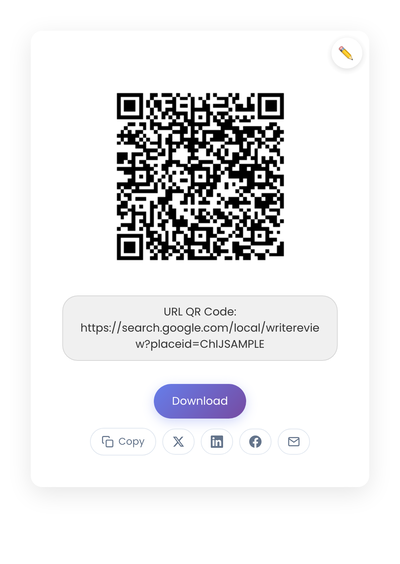
A static QR code pointing to a Google Business Profile review URL. The link is encoded directly into the code; no redirect service sits in between.
Static vs dynamic, for review codes
Static is almost always the right pick. Your review URL is stable. The QR code on your counter today should still work in three years, and the only way to guarantee that is for the code to hold the URL directly. A dynamic code adds a redirect vendor who has to stay online for your printed sign to keep functioning. For something as visible as a review prompt, an outage that makes the code lead to a broken page is a slow trust leak you may not notice for weeks. The full static-vs-dynamic explainer has the longer reasoning.
Where to place the code
Placement matters more than size or design. The code should be visible when the experience is still fresh, in spots where customers naturally pause.
Table tents and bill holders at restaurants do well. Counter signs near payment terminals do well. Small cards handed out with purchases or appointment summaries at clinics or salons do well. Stickers near the exit catch the post-payment scan. Thank-you notes tucked into packaging give the customer a chance to leave a review days later, when they remember the visit fondly.
Less effective placements are predictable: exterior windows where people rush past, flyers stuffed with other information, digital screens that rotate too quickly to actually scan. The code doesn’t need to dominate the space. It needs to be noticed and understood in two seconds.
A short line of text helps every time. “Enjoyed your visit? Scan to leave a Google review” or “Your feedback helps us. Scan here” is enough. Plain language wins.
How to ask without making people uncomfortable
This is a human problem, not a technical one. Most customers are willing to leave a review. They just don’t want to be pressured.
The wording around the code matters more than the code itself. “If you have a moment,” “If you enjoyed your visit,” and “We appreciate your feedback” all communicate choice rather than obligation. Staff can mention it naturally during checkout: “If you’d like to leave us a Google review, there’s a QR code right here. Only if you have time.” Customers can sense sincerity.
Avoid offering incentives in exchange for reviews. Google’s policies discourage it, and it tends to attract low-quality feedback anyway. Trust grows when reviews are earned.
Design rules that affect scan rates
Standard rules apply. Keep the contrast strong: dark code on a light background scans most reliably. Don’t shrink the code below about 1 inch square for printed materials. Leave a quiet zone (the empty margin) around the code so phone cameras can lock on. Test the printed result on a couple of phones before printing in bulk.
Logos and color treatments inside the code can work, but they reduce scan reliability. For something that needs to scan every time across hundreds of customers, plain reliability wins over decoration.
Where review codes underperform
Review requests are fragile; small frictions cut completion sharply.
Linking to a Google search results page instead of the review form. This is the most damaging mistake; customers scan, land on search results, and bounce. Always test that the code opens the review prompt directly.
Using a free URL shortener for the destination. Shorteners can expire, change behavior, or rebrand. Static codes pointing to direct URLs avoid that risk.
Asking every customer loudly or repeatedly. It feels awkward and reduces review quality. Let the code do the work; staff should support it, not push it.
Ignoring accessibility. Not everyone scans QR codes confidently. A short backup line like “Or search our name on Google and click Reviews” keeps the path open for everyone.
Creating a Google review QR code
Copy your Google review link from your Business Profile dashboard (“Ask for reviews” button), then paste it into StackQR. Generation happens in the browser, so the URL doesn’t pass through any third-party server. Before printing, scan with your phone to verify it opens the review screen directly. Once confirmed, use the same code everywhere. Consistency helps customers recognize it over time.
Measuring success without obsessing
Google Business Profile already shows what matters: review frequency, rating trends, and recency. Watch whether reviews arrive more steadily after placing the QR code. Look for customers mentioning how easy the process was.
Set a concrete goal (three fresh reviews this month) and see if the code helps you reach it. If yes, the placement works. If not, try a different spot or different surrounding text. The feedback loop is short.
Resist the urge to optimize for volume. A steady trickle of thoughtful reviews builds more trust than a suspicious spike. The QR code removes friction; the actual customer experience determines what gets written.
A few edge cases
Multi-location businesses need a separate review link and a separate QR code for each location. Don’t reuse codes across locations; they’ll route all reviews to whichever profile the link points at.
Service businesses without a physical counter still benefit from the code. Put it on invoices, in email signatures as an image, or on leave-behind cards.
Older audiences who don’t use QR codes confidently get covered by a one-line backup (“Or search our name on Google and click Reviews”). Respect different comfort levels.
A review QR code only opens the door. The customer still decides whether to write the review. The placement and the link choice are what determine whether the door gets opened often enough to matter.