Every networking event I’ve been to ends the same way. Someone hands me a business card. We have a good conversation, they ask to connect on LinkedIn, and then both of us stand there fumbling with our phones. I spell my name twice. They mistype it once. We scroll through other Kamals trying to find the right profile photo. By the time we actually connect, the conversation has already moved on.
A QR code on the back of the card cuts the entire ritual. One scan opens my profile, the request gets sent while we’re still talking, and the conversation gets to keep going. My profile lives at linkedin.com/in/kamal-kumar, and a static code pointing to it works equally well on a business card, a slide deck, or a sticker on a laptop.
A LinkedIn QR code encodes your public profile URL into a scannable image. Print it on business cards, slides, or booth signage, and people scan to open your profile and send a connection request instantly. Static QR codes work permanently since LinkedIn profile URLs rarely change.
What a LinkedIn QR code actually does
A LinkedIn QR code is a scannable link that opens a specific LinkedIn profile. When someone scans it with their phone camera, their browser or the LinkedIn app opens the profile page. They can send a connection request from there with one tap.
Two paths get you there. LinkedIn has a built-in QR code inside its mobile app, tucked next to the search bar. The app generates a code tied to your account. This is great for in-the-moment exchanges where both phones are out and the app is already open. Its limit is that it lives inside the app: it’s not designed for printing, for embedding on a website, or for any long-term material. If someone asks for the code later, you open the app again.
The second path uses your public profile URL. Take that URL and run it through a generator like StackQR. The resulting static code holds the link directly inside it and can go anywhere: business cards, email signatures, presentation slides, booth signage, printed handouts, laptop stickers. It works without the app being open, without an account on whatever generated it, and without depending on any service to keep working.
Where the code lives
The most common placement is the back of a business card. A small label that says “LinkedIn” under the code is usually enough. Leave a little white space around it so phone cameras can lock on; don’t crowd it against an edge.
The same code travels well across other materials. Email signatures benefit when the email gets printed or forwarded to someone who can’t click on a link easily. The final slide of a presentation or workshop is a natural moment to surface a QR code so attendees can connect before the room clears out. Booth signage at trade shows uses the code well because conversations are short and the alternative is asking strangers to type a handle into the LinkedIn search bar. Workspace displays at coworking spaces or shared offices help visitors understand who they’re speaking with when names and faces are still being learned.
In every case the QR code is doing one job. It removes the typing step that would otherwise stall the moment.
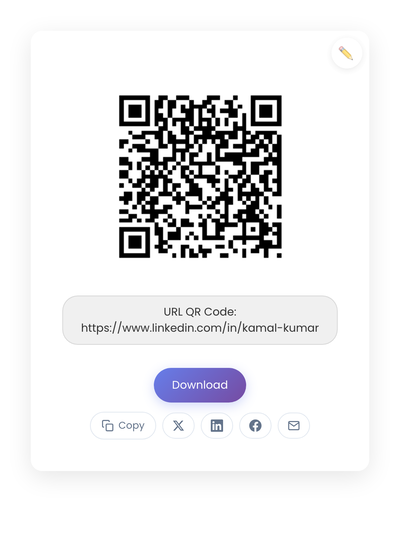
A static QR code holding a public LinkedIn profile URL. Prints to a business card, a slide, or a laptop sticker without modification.
Static vs dynamic, for LinkedIn
Static is the right choice almost always. Your LinkedIn profile URL is stable, and LinkedIn keeps the URL working even when you change your handle in most cases. The code on your business card needs to keep working when you’re handing it out a year later. Dynamic codes add a redirect, a vendor, and a fee for no real benefit in this use case. The static and dynamic QR codes compared unpacks the tradeoff.
Design rules that affect scanning
Three rules cover most of it. Size: business cards need at least 0.8 inches square, flyers and handouts need 1 to 1.5 inches, posters scale up from there. Contrast: black on white is the most reliable; brand colors can work for the surrounding design without altering the code itself. Quiet zone: leave a blank margin around the code so phone scanners can find its edges; cropping too tight breaks scans more than people expect.
Always test the printed result on at least two phones. The cost of a reprinted batch of business cards is bigger than ten minutes of pre-test work.
Privacy and boundaries
A LinkedIn QR code opens your profile. It does not force a connection. The other person still chooses whether to send a request and you still choose whether to accept. That’s the right design for most professional settings.
Some people specifically prefer this over giving out a phone number or email at events, because it lets you review inbound requests later rather than handing direct access to everyone in the room. If you want to keep your contact channels selective, this is a feature.
What undermines a LinkedIn code at an event
The mistakes here cost connections you never know you missed.
Linking to the wrong profile view. LinkedIn has multiple URL formats. Always use the public profile URL (test it from a logged-out browser to confirm it loads for someone who isn’t connected to you).
Printing before testing. Always scan the printed proof, not just the generated PNG. Ink density and paper finish change scan behavior more than you’d think.
Overloading the design with instructions, arrows, or multiple labels. A simple “LinkedIn” label under the code does what three lines of text won’t.
Using a code generated inside an app or behind a login for long-term print materials. The code can stop working when the source app changes; a static URL-based code stays put.
Creating a LinkedIn QR code
- Copy your LinkedIn profile URL (e.g.,
https://www.linkedin.com/in/yourname). - StackQR makes a code from your profile URL in seconds, sharp enough for a business card or a conference lanyard.
- Download as SVG for print or PNG for screens.
- Scan the printed result on two phones before committing to a print run.
Generation happens in the browser, so the URL never reaches a server.
A LinkedIn QR code saves the thirty seconds of fumbling that kills most casual connection attempts. Print it on whatever travels with you, and the next introduction is already smoother.