Quick Answer
A PDF QR code links to a hosted document so people can scan and read it on their phone. Upload your PDF to a stable URL, generate a static QR code for that link, and print it. When you update the file at the same URL, the QR code keeps working without a reprint.
Sharing a PDF at a real-world event is surprisingly awkward. Emailing it requires you to collect addresses, which slows everyone down. Printing it wastes paper and produces documents nobody wants to carry home. Telling people to “find it on the website later” almost always means they never do. Yet every small business has PDFs that need to get into customers’ hands: catering menus, intake forms, product care guides, price lists, event schedules.
A printed QR code linking to the hosted PDF is the path of least resistance. Someone scans the code, the document opens on their phone, and they can read it, save it, or forward it without asking anyone for anything.
I noticed this most clearly traveling through Spain and France a few years back. The best museums and major attractions had moved past printed visitor maps entirely. A small kiosk at the entrance held a QR code that opened the visit map as a PDF, often with a separate code for English next to the French original. Inside, a similar pattern repeated for exhibit details. The map I downloaded at Versailles is still in my phone’s downloads folder. The paper map I would have grabbed and lost is not.
How PDF QR codes actually work
The QR code points to a web address. When someone scans it, their phone opens that URL and the PDF loads. Two common patterns produce the same outcome.
The code can link directly to the PDF file itself, which is the simplest setup and works well for a document people are likely to scroll, save, or print.
The code can link to a webpage that hosts or embeds the PDF, which is useful when you want to add context above the document, offer multiple language options, or track scans through page analytics.
Both work. The right choice depends on how often the file changes and where it lives on your hosting setup.
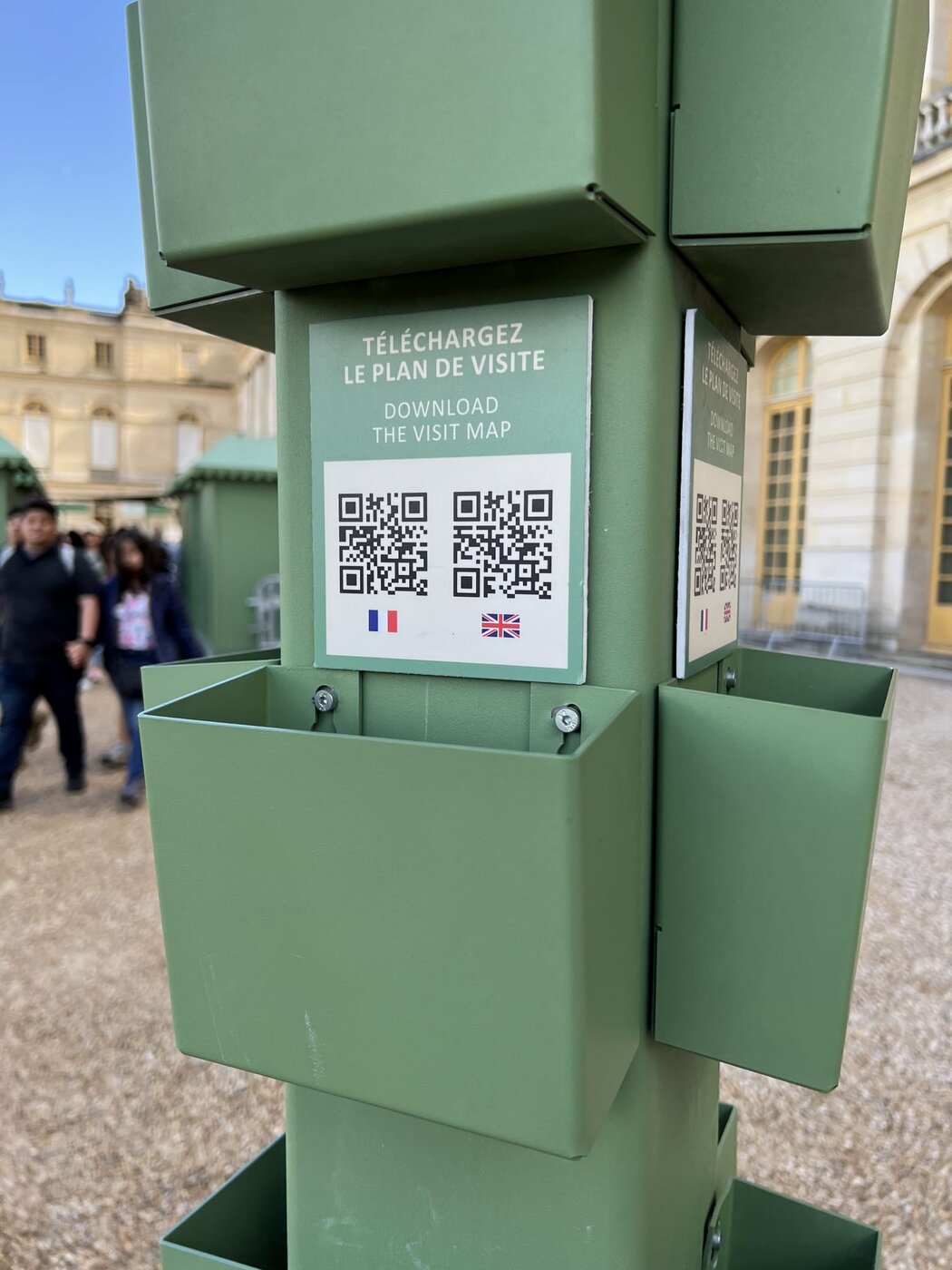
A kiosk at the entrance of the Château de Versailles. Two QR codes, one for each language, both pointing to the visit-map PDF. The card mounting holes below would once have held printed paper maps; the QR codes replaced them.
Where a PDF code beats a printout
Two examples cover most of the territory. A restaurant puts a code on the counter that opens the catering menu PDF while customers wait, and reprints the code only if the URL itself changes; the menu content updates behind the same URL. (For dine-in menus specifically, the restaurant menu QR guide owns that ground.) And a retailer selling higher-value goods (sporting equipment, electronics, specialty kitchen tools) prints a code on the receipt that opens a setup-and-care guide, so the customer scans at home with a question instead of calling the store.
Everything else (intake forms at a front desk, invoices linking to payment instructions, lookbooks by a register, the visitor maps in the Versailles photo above) is the same move: a document someone will want later, reachable from paper they’re already holding.
Static vs dynamic, for PDFs
Static is the right pick almost always. You can update the PDF file at the same URL without changing the code: replace the file, the URL stays the same, the printed code keeps working. This handles most update needs without the redirect-service dependency that dynamic codes add. If you’re weighing the two types, the static vs dynamic guide settles it.
Designing the PDF for phone use
A QR code opens the document, but the experience depends on how the document behaves on a phone.
Keep the PDF lightweight. Large files load slowly on mobile networks and people give up. Compress images, remove unused pages, and skip print-quality graphics that nobody needs on a 6-inch screen.
Use a mobile-friendly layout. Single-column layouts read better on phones. Small fonts force pinch-zoom and lose readers. A menu designed for table tents looks different from a menu designed for phones; the QR-accessed version usually benefits from a phone-first redesign with larger text and fewer columns.
Test on actual devices. Scan the QR code on an iPhone and an Android phone, over both WiFi and cellular. The PDF that opens cleanly on a desk screen can struggle on cellular over a busy lunch hour.
Failure modes for PDF QR codes
Four things account for nearly every dead or abandoned PDF code.
PDFs that are huge. A 20MB menu loads slowly on cellular, and the customer who just sat down with their food doesn’t have the patience to wait. Compress the file. Strip unnecessary embedded fonts and high-resolution photos.
Linking to an unstable URL. A path like mysite.com/uploads/menu-spring-2025.pdf is brittle. When the file updates, the URL might change with it. A path like mysite.com/menu.pdf (with the file replaced in place) keeps the QR code alive across updates. Use redirects on your own domain if the underlying file paths have to change.
Skipping accessibility. A PDF without proper text tagging is unreadable for screen reader users. If accessibility matters in your context (which it often does), test the PDF with VoiceOver or TalkBack before printing the QR code. A well-structured webpage may serve you better than a PDF in some cases.
Not testing the printed result. The QR code on a screen scans cleanly; the QR code on a glossy receipt under fluorescent light might not. Scan the printed proof on at least two phones before committing to a print run.
Creating the code
- Prepare the PDF: Size it for phone screens, keep it under a few megabytes, and confirm the text is readable without zooming.
- Upload to a stable URL: Put it somewhere you control; when content changes, replace the file at the same location.
- Generate the code: Run the PDF URL through StackQR and download an SVG that prints cleanly on table tents, flyers, and counter cards.
- Test and print: Scan the printed result on two phones before going to print at scale.
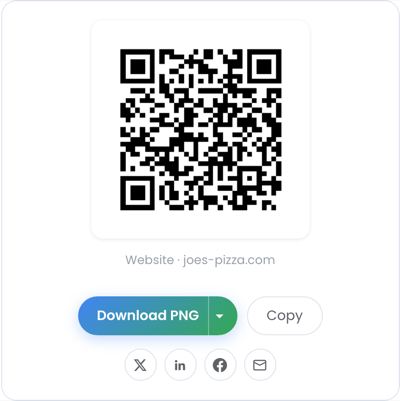
The code from step 3, generated from a sample mysite.com/menu.pdf URL. Replace the file behind that URL and this same printed code opens the new version.
Generation happens in the browser, so the PDF URL never reaches a server.
Updating PDFs without reprinting
The whole point of pairing a printed QR code with a hosted PDF is that the PDF can change without anyone reprinting the code. Some practical habits keep the system working: keep a backup of the previous file before replacing it, name files clearly on the server side (even though the public URL stays the same), and scan the live link after each update to confirm it still resolves. These take seconds and prevent the moment when an outdated menu reaches a customer.
When a PDF isn’t the right format
A few situations push the answer toward a webpage rather than a PDF.
Forms that need signatures or interactive fields work better as web forms. PDFs handle viewing well but editing on a phone is clumsy.
Content that changes multiple times a day. A webpage updates instantly; a PDF requires a file replacement.
Material that needs accessibility tagging out of the box. Well-structured HTML usually outperforms a PDF for screen readers.
For everything else, the PDF-plus-QR-code combination handles the job. The customer scans, the document opens, and the business doesn’t have to think about distribution again until the content changes.