Most wedding photo QR code advice stops at “put a code on the tables.” The part that decides whether you end up with four hundred guest photos or twelve is where the code sends people and whether uploading works without signing in to anything.
A wedding photo QR code points guests to a shared album or upload page where they can add photos and videos with one scan. Print it on table cards or a sign near the guest book, link it to a static destination, and test it on multiple phones before the day arrives.
How to make a wedding photo QR code (3 steps)
- Pick where photos will land. A Google Photos shared album, an iCloud Shared Album, or a Dropbox folder all work. Confirm guests can upload without signing in to anything.
- Generate the QR code. Paste the album’s share URL into StackQR and download the SVG (for print) or PNG (for digital).
- Print and place. At least 1.5 inches square on table cards, 3+ inches on a venue sign. Test the scan on two phones before printing the full run.
That’s the working version. The rest of this article explains why each step matters, which destinations actually behave well at a wedding, and what to do with the photos after the night ends.
Why this comes up at almost every wedding
The same thing happens at almost every wedding. A few hundred phones in the room, hundreds of photos taken across the day, and no shared place for any of it to land. A handful surface in group chats the next week. The rest stay in camera rolls scattered across the country, meant to be shared and never quite shared.
A QR code on each table card or near the guest book closes that gap. One scan, an upload page, and the wedding’s full visual record (the candid angles, the in-between moments, the table photos from the people actually sitting there) collects itself as the day unfolds.
How a wedding photo QR code actually works
The code is a visual shortcut to a web link. A guest opens their phone camera, points it at the code, and a page opens. For weddings, that page is usually a shared album, an upload form, or a folder that accepts photos and videos. The code itself doesn’t store anything. It just opens the URL.
That separation matters more than it sounds. The code stays the same once you print it. The destination behind it can grow, change services, or be archived later, and the code on your table cards still works.
For weddings specifically, static codes fit better than dynamic ones. The album URL stays the same before, during, and after the event, so paying a subscription for an editable destination buys nothing useful. The full static vs dynamic QR code comparison covers the longer comparison if it matters.
Where the photos should land
This is the first decision, and the rest follows from it. There are three common destinations.
The first is a cloud folder. Google Photos shared albums, iCloud Shared Albums, Dropbox folders. Most guests already know how these work, so uploads feel familiar. Check whether they require an account, how files get organized, and how long the folder stays available before you commit. For most couples this is the easiest path.
The second is a wedding-specific platform. Several services exist that handle uploads, moderation, and automatic sorting for events. They cost something, but the upload flow is often smoother and the storage is designed for the volume a wedding produces. Read the guest-side experience yourself before printing materials, ideally from a phone over cellular, because that’s how most people will actually scan it.
The third is a custom upload form on your own page. This gives the most control and the most setup work. If you already have a wedding website, an upload form on a subpage can be the cleanest option. The QR code points to that page, the page does the work.
What guests see after scanning
Three patterns come up most often. The first lands guests on a gallery where they can view photos already uploaded. This works when you want the album to feel social during the reception, when only a few people can upload, and when there’s already material in the gallery to look at. Some couples pair it with a separate upload link shared privately with close family.
The second pattern is a plain upload form. Pick photos, hit submit, done. This is the most common setup at weddings because it’s the lowest-friction action for guests who have one hand free and a plate in the other. Check the file-size limits, whether uploads require sign-in, and whether the uploader can see what others have added.
The third pattern combines both. A single page with view-and-upload in one. It’s nice when it’s clean, frustrating when it’s busy. On a wedding day, fewer steps matter more than features.
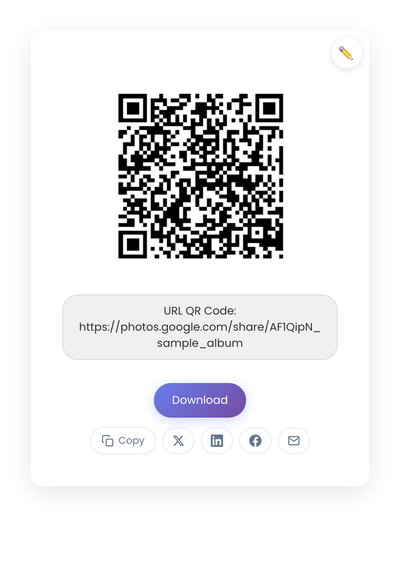
A static QR code that holds the shared photo album URL directly. The album itself does all the work; the printed code on the table card is just a fast path to it.
Where to place the code
Visibility decides everything. Place a code where guests already pause: table cards at every seat, a sign near the guest book, a small card at the bar. Two or three locations work better than fifteen scattered ones. A clear sign at a natural pause point gets scanned more often than a tiny code tucked next to a centerpiece.
The signage itself benefits from a few practical choices. High contrast between the code and its background. No glossy finish, since reception lighting reflects off it. White space around the code so phones lock on quickly. And one short instruction line. “Scan to share your photos” is enough. Long captions get skipped.
Stationery designers often fold the code directly into the table card or program design, matching the rest of the paper goods. That makes it feel part of the wedding rather than tacked on.
Timing matters more than the code
Guests upload most when the moment is natural. Early in the reception, people are still settling. Later, phones are out and moments happen fast. A brief mention during announcements doubles upload rates with almost no effort, but it isn’t required. A clear sign visible throughout the day collects photos steadily on its own.
Privacy choices
Wedding photos are personal. Before the day, decide:
- Whether uploads stay private to the couple or visible to all guests
- Whether guests can download what’s been uploaded
- Whether photos can be re-shared off the platform
These controls live with the photo service, not the QR code. StackQR generates the static code that points to your chosen destination; the destination handles permissions. Run your album’s share URL through StackQR and you’ll have a clean code ready for table cards, the welcome sign, and thank-you notes.
Testing before the day
Test before printing. On multiple phones. On WiFi and on cellular. In reception-style low light. A code that scans cleanly under a desk lamp can struggle in a dim venue with mood lighting overhead. If the test scan is slow or the page feels cluttered, guests will skip it on the day.
A small pre-print checklist:
- Scan the code from arm’s length on three different phones.
- Confirm the destination loads in under three seconds on cellular.
- Verify the upload flow takes fewer than four taps.
- Make sure guests can upload without creating an account.
After the event
Uploads usually continue for several days. Some guests wait until they’re home with WiFi. Plan for that. After the wedding, download everything to a local drive, sort by uploader or by time, and back up the collection in at least two places. A short follow-up message with the same QR code link catches anyone who missed it during the day. Because the code points to the same page, nothing about the process changes.
What kills wedding photo scans
A few small mistakes show up at wedding after wedding. The code printed too small is the most frequent. Guests hesitate when scanning fails, and they stop trying after the second miss. Pages that ask guests to sign in or fill out long forms thin the uploads sharply. The whole interaction happens on a phone, so pages designed for desktop feel cramped and slow. And waiting until the week of the wedding to set this up leaves no room to test, which is exactly when problems surface.
Beyond the wedding day
The same approach extends naturally. Engagement parties, bridal showers, and rehearsal dinners can each point to their own album, or all of them can feed into a single collection sorted by event. Because static QR codes cost nothing to generate and almost nothing to reprint on a smaller piece of paper, the cost of trying it for a smaller event is essentially zero.
Material choices for the print
Paper, acrylic, wood, and fabric all work as QR code substrates. Matte finishes scan more reliably than glossy ones because glare confuses phone cameras. Before the final print run, scan a proof in the actual venue if possible, or in similar lighting if not. Most issues come from finish and light, not from the code itself.
Why it fits weddings
Weddings have plenty of moving parts, so anything new needs to earn its place. A photo-sharing QR code uses tools guests already have (the phone camera, an upload form, a cloud folder), takes one short instruction line to explain, and stays out of the way of the actual celebration. Its only job is to catch the photos that would otherwise scatter across hundreds of separate camera rolls.
That collection is what’s missing from most weddings I’ve been to: the candid shots from the guests’ angles, the in-between moments the hired photographer didn’t see, the table photos taken by the people actually sitting there. A single QR-coded sign at the bar or on the table cards is the cheapest way to capture that side of the day before it disperses.