Quick Answer
Canva’s built-in QR code generator creates static codes that work well for short-term designs and one-off materials where the link is stable. For long-lived or widely reused QR codes, generate once with a dedicated tool and import the image into Canva instead.
Canva has had a QR code generator built into the app for a while now, tucked away in the Apps menu where most people never look. If you already use Canva for flyers, social posts, and client decks, you can generate a working QR code without ever leaving the design. That’s genuinely useful, and it’s also the source of some confusion about when it’s the right tool and when it isn’t.
The short version: Canva’s generator works well for some things and creates problems for others. Knowing which situation you’re in saves reprints, avoids broken links, and keeps the design workflow simple.
What Canva’s QR code generator actually does
Canva generates static QR codes. The URL is baked directly into the code image at the moment you generate it. If the link changes later, the code does not update. You would need to generate a new code and replace it everywhere it appears.
There’s no dashboard, no scan data, no version history. Once placed into a design, Canva treats the code like any other image element. That simplicity is the reason many people like it, and it’s also the reason businesses get caught when a destination URL changes later.
The technical distinction here is the same one that matters across all QR code tools: a static code holds the link directly inside it, while a dynamic code points to a redirect that can be updated later behind the scenes. Canva is static-only. That fits some workflows and breaks others.
When Canva’s generator is the right choice
The Canva path makes sense when all of these are true:
- The link is stable for the lifetime of the design.
- The QR code is tied to one specific design rather than reused across many.
- Re-exporting and reprinting are easy if anything changes.
- You don’t need scan tracking.
In plain terms: short-lived posters for a one-week promotion, weekend event flyers, single-use registration cards, PDF brand guides that get emailed and updated periodically. The code lives and dies with the design. Static and embedded inside Canva is fine.
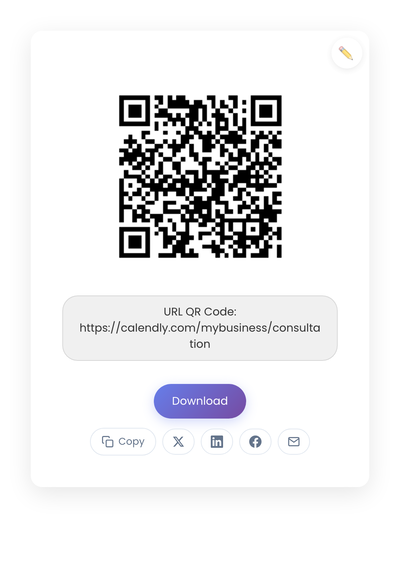
A static QR code generated on StackQR and exported as SVG. Drop the image into Canva as a regular asset; the code is identical to one generated inside Canva, but you control where it lives and how it gets reused.
Where Canva’s generator creates friction
The pattern that catches people is using Canva-generated codes for materials meant to live longer than the design cycle. Plumbing door hangers printed once and distributed for six months. Cafe table tents that stay up across menu refreshes. Loyalty cards that go out for years. Window decals that outlast the URL behind them.
The same friction shows up when one QR code appears across many designs in Canva: a window sign, a table tent, an Instagram graphic, a thank-you card. Each one was generated separately inside Canva. When the destination changes, every single design has to be hunted down and rebuilt. Missing one means an inconsistent customer experience for as long as that material is in circulation.
The simple decision
Three questions usually settle it.
- How long will this QR code be in use?
- How many places will it appear?
- How easy is it to replace if something changes?
Short-lived, single-use designs lean toward Canva’s built-in generator. Long-lived, multi-placement use cases benefit from generating once outside Canva and dropping the same image into every design.
Using Canva’s QR code generator
- Open your design in Canva.
- Click Apps, then QR Code, and paste your destination URL.
- Position and resize the code, keeping it large enough to scan from the intended distance.
- Export and test the printed result on at least two phones.
Testing after export matters more than testing inside Canva, since small layout or background changes can affect scannability.
Using an external generator with Canva
The alternative is to separate generation from design. Generate the QR code once on StackQR, download it as SVG, and drop the image into Canva like any other element. The same code image then appears across every brochure, slide, and one-pager. If the destination URL ever needs to change, you regenerate once and replace the image; the change propagates as you update each design rather than as Canva sweeps every embedded code for you.
This adds one step up front for a meaningful reduction in maintenance later. For businesses with stable URLs that get printed across many materials, it’s almost always worth it.
Design rules that apply either way
Regardless of which generator you use, QR codes follow a few physical rules.
Small codes fail more often than large ones. Test from the farthest expected scanning distance; if customers stand three feet away, scan from three feet during testing.
Dark code on light background scans most reliably. Canva allows color and gradient changes, and they look great in a brand kit, but decorative palettes lower scan rates. For high-traffic use, stick to black or near-black on white.
QR codes need a clear quiet zone around them. Avoid placing text, borders, or patterns too close to the edges. Decoration in that white space breaks scans.
Always test the exported result, not the preview inside Canva. Lighting, surface, and final scale all change behavior.
A quick decision rule
If replacing the QR code later would feel annoying or expensive, generate it once outside Canva and reuse it. If the design itself is temporary, generate inside Canva and move on.
That single rule prevents most of the headaches small businesses run into with Canva-generated codes.